
This guide explains how to log in to a Maventa account using a one-time emergency code.
Logging in with an emergency code
- Log in: enter the email address and password at Maventa.
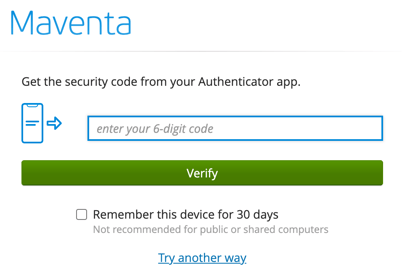
- Select an alternative method for authentication: click "Try another way".
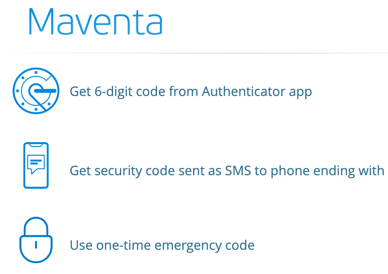
- Select Use emergency code: select "Use a one-time emergency code" and paste in the emergency code sent by email.
- Save the new emergency code: once the system issues a new one-time emergency code, save it somewhere safe and click "I've written down my new one-time emergency code". Access to the Maventa account is then granted.
- Re-enable two-factor authentication: because the emergency code is single-use, two-factor authentication and the authenticator are re-enabled straight after logging in, so that future logins can be made using the authenticator and a 6-digit code. Detailed instructions are available in the article Re-enabling two-factor authentication (2FA) and the authenticator.
The emergency code is given to the user at first login, when two-factor authentication is set up. It has no time limit, so it can be used whenever needed, for example if a phone is lost or broken and no other login method is available. The emergency code is single-use and intended for one login only, so the same code cannot be used more than once. If the emergency code has been lost, a new one can be obtained from Maventa customer support.