
Following received invoices through an API connection
When accounting software is connected to Maventa through an API, received invoices are transferred to the accounting software automatically and can be processed there. Therefore, it is not necessary to check new invoices manually on the Received invoices tab in the Maventa user interface, or to download them from there.
Ways to follow new received invoices through the API
Webhooks (recommended): Maventa sends a notification to the accounting software as soon as a new invoice is received. The software can then download the invoice straight away.
Status checks: the accounting software asks Maventa for new received invoices at regular intervals, usually once or twice a day. This is an option when webhooks are not available, and it can also be used once a day as a backup alongside webhooks, so that no invoice is missed.
Receiving functions available through the API
-
Downloading invoices and attachments: the accounting software downloads the invoice in the format it needs, together with the invoice image (PDF) and any other attachments. If the sender has not provided an invoice image, the accounting software can request an invoice image generated by Maventa.
-
Invoice origin: the invoice details show where the invoice came from, for example the Peppol network or a scanning service. Scanned invoices may be less accurate than electronic invoices, depending on the quality of the original document.
-
Detect results: if the Detect service is in use, the accounting software can fetch the results of its checks for each received invoice, such as VAT register checks and bank account change detection. The results help to identify invoices that need a closer look before approval.
-
Reporting fraud: suspected fraudulent invoices can be reported directly from the accounting software. The report status can be checked, and a report can be deleted if the suspicion turns out to be unfounded. Only one report can be made per invoice. As in the Maventa user interface, the function is not meant for disputing an invoice or refusing payment.
Which functions are available in the accounting software depends on how its API connection is built. The software provider can confirm which functions it supports.
ℹ️ More information is available in the documentation: Invoice receiving and Fraud reporting.
Following received invoices in the Maventa user interface
The invoice views in the Maventa user interface can be viewed by Admin- and User-level users of the company account. Received and sent invoices are divided into their own tabs, and the view can be customised by choosing whether to display 25, 50, or 100 invoices at a time on the page.
Selecting the number of invoices is done using the 25/50/100 items per page drop-down menu on the right side of the view.
👉 Open the view directly in Maventa: Received invoices. You’ll need to sign in first if you aren’t already.
Searching for received invoices and retention periods
On the Received invoices tab, you can search for purchase invoices using the following details:
-
Invoice number
-
Supplier's name
-
Unique identifier of the invoice (ID)
Invoices can also be searched from a specific time period by clicking the Search field on the left side of the view and defining the desired date range in the Creation time section that appears next to the Search field.
The specified date range can be removed by clicking the Ⓧ button on the right side of the date fields.
Invoices are retained in the Maventa user interface for 24 months, which is why invoices older than two years can no longer be viewed or searched for through Maventa. Consequently, the archiving of invoices to bookkeeping or another external storage location must be taken care of within the retention period.
💡 If the search yields no results, check that you are on the correct tab and that the invoice you are looking for is not older than 24 months.
Selecting the columns to display
The details displayed in the columns of the invoice list can be selected by the user. The selection is made via the Display columns drop-down menu found on the right side of the view by clicking the desired checkboxes to active. If you wish to remove displayed details, this is done through the same drop-down menu by clicking the checkboxes inactive.
The following details can be selected for the view:
- Invoice number and Invoice ID
- Reference number
- Sender and Sender's BID
- Recipient and Recipient's BID
- Invoice date
- Received at
- Net amount and Gross amount
- Invoice status
- Receiving channel
- Open as a tab
Downloading the received invoices list
The invoice list can be downloaded to a computer in either XLS or CSV format. The download is done via the Export drop-down menu found on the right side of the view by clicking the desired file format. The download occurs automatically after clicking.
ℹ️ The content of the downloaded file is determined by the page view. If "25 invoices per page" is selected as the view, only those 25 invoices will be included in the downloaded file. If you wish to download more invoices at once, the number per page must be changed before downloading. The maximum amount is 100 invoices per page.
Invoice details and actions in the Maventa user interface
More detailed information about an invoice can be displayed by clicking the invoice row in question or by selecting the tab icon if Open as tab has been configured as a displayed column in the invoice list.
Invoice attachments
Invoice attachments: All invoice files forwarded to Maventa can be viewed and downloaded under the Invoice attachments section on the left side of the view.
The following can be viewed and downloaded in the view:
- Invoice image (PDF)
- Original XML data of the invoice (XML)
- Other possible attachment files (Attachment drop-down menu)
- Virtual barcode
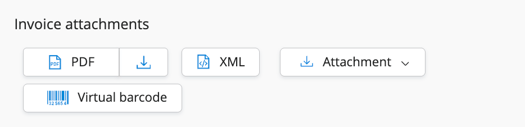
If an attachment is missing from the view (excl. virtual barcode), it has not been successfully transferred from the supplier to Maventa.
Marking an invoice as handled and reporting fraudulent invoices
Mark as processed: Information about the marking is visible only to the user who used the function. The function has no effect outside the Maventa user interface, and no information about making the marking is forwarded to the invoice supplier.
A received invoice can be marked as processed by clicking the Mark as handled button on the right side of the view.
Report scam: If a received invoice is suspected to be a scam, a notification can be made to the system by clicking the Report fraud... button on the right side of the view.
The reason for reporting can be selected from the following options, among others:
- Non-existent product
- Non-existent company
- Unsolicited invoice, or suspicion that the invoice does not comply with the law
- Misleading marketing
- Supplier known for a previous fraud attempt or suspicious activity
📌 The Report fraud function is intended solely for the prevention of criminal activity. The function cannot be used to resolve ambiguities in invoice content, commercial disputes, or for refusing payment.