
- What is the Mass Print Service?
- Technical Requirements for Materials
- Mass Print Service Setup
- Activating the Service
- Logging into the Service
- Important Notes on Login and User Accounts
- Delivery Schedules and Distribution
- Instructions for Sending PDF Materials
What is the mass print service?
The Mass Print Service is an additional service from Maventa that enables you to send PDF documents as physical mail both domestically and internationally. The service is suitable for sending items such as invoices, direct payment notifications, announcements, or payslips.
Note on service separation: The Mass Print Service operates independently from Maventa's standard services. Materials sent via this service do not appear in the standard Maventa invoice list; they are tracked and managed exclusively through the Mass Print Service portal.
Technical Requirements for Materials
To ensure successful processing, follow these technical specifications:
File Format and Compression:
- Materials must be submitted in a ZIP package. A single ZIP package can contain multiple PDF files.
- One letter per PDF: Each separate letter must be its own PDF file inside the ZIP package.
- Page Size and Orientation: The recommended page size is A4 (210 x 297 mm) with a portrait orientation.
- Print Method: Files sent through the Mass Print Service are always printed and forwarded single-sided.
Envelope Allocation by Page Count
Mailed letters are automatically placed into envelopes based on page count (per PDF file):
- 1–9 pages: C5 envelope
- 10–60 pages: C4 envelope
- 60+ pages: C4 envelope
Before sending materials, ensure that the PDF files comply with official design guidelines (such as address field placement). Detailed instructions can be found here.
Mass Print Service Setup
Activating the Service
Activation of the Mass Print Service is free of charge. You can activate the service in two ways:
- Directly through your invoicing software (if supported by your software).
- By contacting Maventa Customer Support.
💡 Detailed activation instructions are available in our documentation here.
Logging into the Service
Once the Mass Print Service is activated, you can access and log into the service portal via two routes:
- Via your invoicing software, or
- Via the Maventa user interface at secure.maventa.com
Route via the Maventa interface:
- Log into Maventa.
- Go to the Dashboard page.
- Use the direct login link under Quick Links on the left side, under "Mass Print Service" (Massatulostuspalvelu).
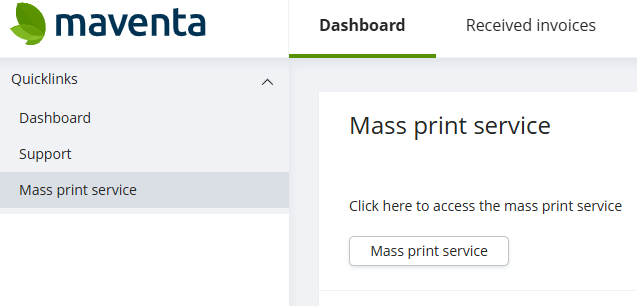
If you are unable to log into the Mass Print Service or need assistance with setup, contact customer support.
You can submit a support request directly using the Maventa Support Request Form.
From the main view of the service, you can upload materials, adjust settings, and change your service password under the Change Password section.
Important Notes on Login and User Accounts
Legacy Maventa Accounts
- Accounts created before October 2020: If your Maventa account was created before October 2020, your Mass Print Service password is likely your original, legacy Maventa password.
Managing Multiple Company Accounts (Restrictions)
If you manage multiple companies in Maventa, observe the following account rules:
- To use the Mass Print Service for multiple companies, each company account must have its own separate user account (email address) that has not yet been registered in the Mass Print Service.
⚠️ One user account can only be linked to one Mass Print Service account.
Delivery Schedules and Distribution
The scheduling for the Mass Print Service is automated to deliver materials to recipients as quickly as possible.
- Submission Cut-off: PDF materials received by the Mass Print Service before 24:00 (midnight) are processed for printing during the same night.
- Mailing: Letters printed overnight are handed over for distribution the following business morning.
Distribution Providers and Delivery Times
Maventa's print service provider uses two distribution companies for letter delivery:
- Posti
- Jakeluyhtiö Suomi Oy (JYS)
📅 Delivery Times: Delivery time depends on the selected letter class. For Finnish companies sending domestic mail, two options are available: Priority and Economy. Specific and up-to-date delivery schedules can be checked directly on the respective distribution provider's website.
Instructions for Sending PDF Materials
Follow these steps to send materials through the Mass Print Service:
Step 1: Log into the Service
- Log into your Maventa account.
- Select Dashboard from the top bar.
- Select Mass Print Service from the Quick Links on the left. The page will open in a new tab at payslip.maventa.com/login.
- Log in using your Maventa credentials (or separate credentials created for the service).
Step 2: Upload Material
- Ensure your file is compressed into a ZIP format containing PDF files (one letter per PDF file).
- Go to the upload page and select the desired ZIP file from your computer.
- Select the required settings:
- Colour printing: Yes / No
- Letter class: Economy or Priority (domestic shipments)
- Click Send. An "OK" message will appear on the screen once the upload is successful.
Step 3: Track Shipment Status
- Click Back to list to return to the shipment list. Here you can view all uploaded files and their current status.
- Once the printing service has printed your letters, an automatic confirmation email will be sent to you.
Note: The service provider is not responsible for the delivery of letters with incorrect layouts or improperly formatted address fields.