
- Accessing the support portal
- Logging in with existing credentials
- Registering as a new user
- Troubleshooting
ℹ️ Using Maventa through accounting software? If you use Maventa's services through your accounting software, contact your accounting software provider's support first. They provide centralised support for their customers. You can find more information on the support page Contact information - Accounting software users.
Accessing the support portal
In the support portal, you can submit support requests and follow the status of your tickets.
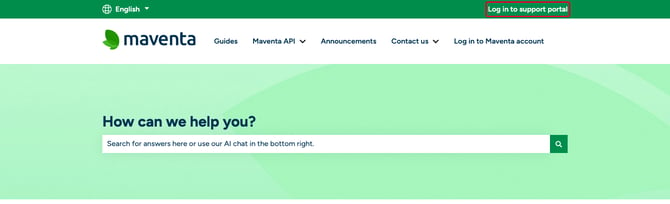
- Go to the Maventa knowledge base.
- Click Log in to support portal in the top right corner.
- The Sign in view opens.
Logging in with existing credentials
If you already have support portal credentials, you can log in with your password or with a link sent to your email.
Logging in with a password
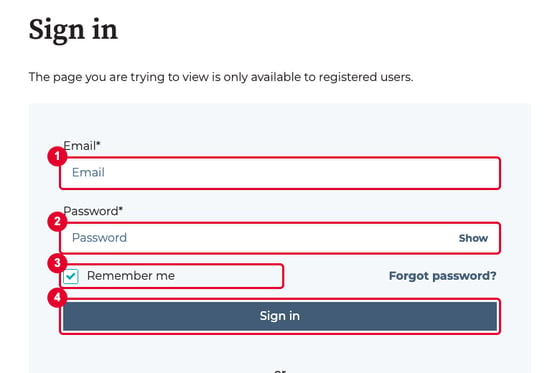
- Enter your email address in the Email field.
- Enter your password in the Password field. To check what you've typed, select Show.
- Select Remember me if you want to stay logged in on this device.
- Click Sign in.
💡 If you're using a shared computer, clear the Remember me box before you sign in.
Logging in with a one-time link
You can also log in without a password. A one-time sign-in link is then sent to your email.
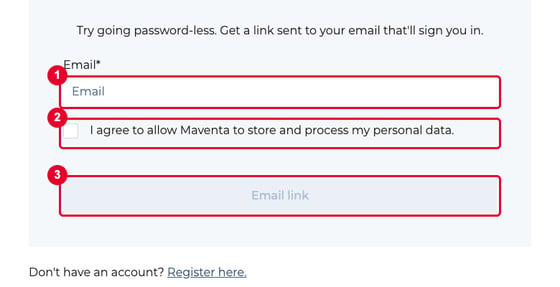
- Under Try going password-less, enter your email address in the Email field.
- Select I agree to allow Maventa to store and process my personal data.
- Click Email link.
- You’ll receive an email from Maventa Support with the subject Sign in with one-time link | Maventa customer portal.
- Click Sign in in the email. You can also copy the link in the email and paste it into your browser.
ℹ️ For your security, the link expires in 15 minutes. If it has expired, request a new one.
Resetting a forgotten password
Step 1: Request a password reset
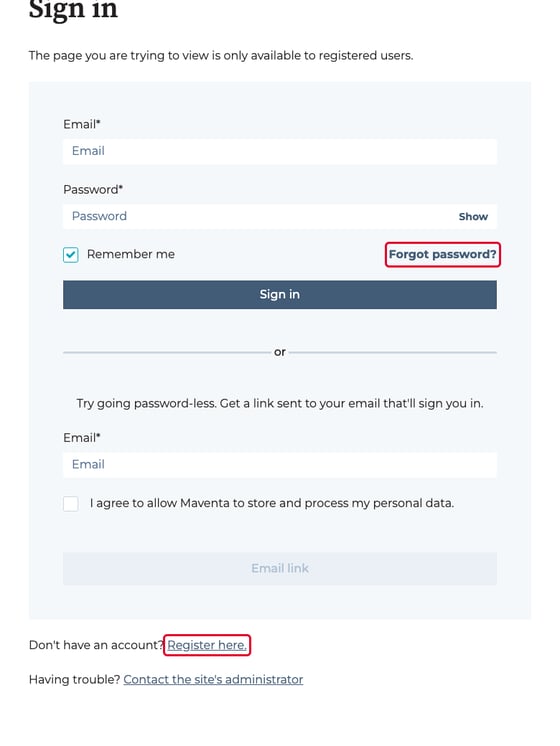
- In the Sign in view, click Forgot password?
- Enter your email address and send the request.
- The Password reset email sent view opens.
💡 If the email doesn’t arrive within 20 minutes, check your spam folder or click Send another reset email.
Step 2: Set a new password
- You'll receive an email from Maventa Support with the subject Reset your password | Maventa customer portal.
- Click Reset password in the email.
- The Create new password view opens.
- Enter a new password in the New password field and enter it again in the Confirm new password field.
- Click Save password.
After you save the new password, the Sign in view opens automatically and you can log in with your new password.
ℹ️ The new password must be different from your previous password. It must be at least 12 characters long and include at least three of the following: a lowercase letter, an uppercase letter, a number, or a special character.
Registering as a new user
If you are using the support portal for the first time, register first.
Step 1: Open the registration view
- In the Sign in view, click Register here. at the bottom of the page.
- The Set up your password view opens.
Step 2: Set up your password
- Enter your email address in the Email field.
- Enter a password in the Password field and enter it again in the Confirm password field.
- Select I agree to allow Maventa to store and process my personal data.
- Click Save password.
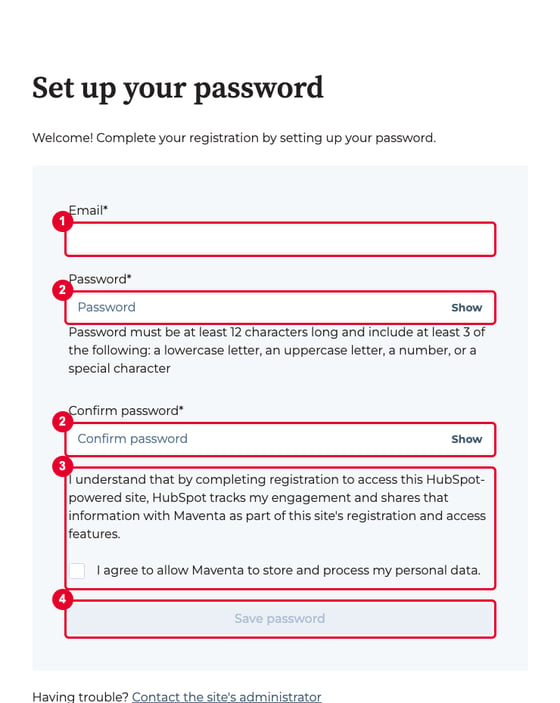
ℹ️ The password must be at least 12 characters long and include at least three of the following: a lowercase letter, an uppercase letter, a number, or a special character.
Step 3: Log in
- Once registration is complete, log in with your email address and password as described in Logging in with a password.
Troubleshooting
If you can’t log in or register, click Contact the site's administrator in the Sign in view, or contact Maventa support via the Contact information page.