
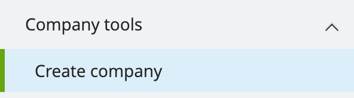
Create a new company
-
Sign in at https://secure.maventa.com/login
-
Follow the path: select Settings > Tools > Create new company.
-
Fill in the form:
- Enter the account type, country, and software.
- In the Company information section, enter the company name and Business ID.
- Fill in the postal address details under the “Add postal address” heading
- Under the “Settings” header, add at least the company’s email address and, if needed, a separate billing email address.
-
Register: When all information has been entered, click “Register” to receive confirmation that the account has been successfully created.
-
Select the new company: From the “Select company” menu under your username (top right corner), choose the company you just created.
- Send the signature request needed for account verification and follow the instructions in the signature request email sent separately.
- Once the signature has been completed, click “Continue” in Maventa.
- The account is now ready for use!
- If necessary, review the account settings and make sure all desired services and settings are enabled.
- Please note that enabling the banking network will still take a few banking days after the account has been opened